The QuickLinks Dashboard is where prebuilt and subscription reporting resides as well as links to other resources. QuickLink reports use the Global Report Filters in My Settings to decide if Direct Fulfillment, Print to Order, Medium (Digital or Physical), International Consignment, and Destination Regions selections appear in the report results. Edit the filter options to over-ride the default settings.
Report values in blue mean the value links to another report or dashboard. When you access another report from within a report, these are "drill-down reports". The information is becoming more refined as you select each link. A lot of reports drill-down to the EAN Information page, also known as the Single EAN Dashboard. Example: In the Direct Fulfillment report, the Customer PO field value links to a Direct Fulfillment Title report where the EAN links to the EAN Information page. At this point you have drilled down to a third level to a specific EAN.
A new multi-sort feature is available in most reports. When accessing a report, the down arrow on a column indicates it is the default sort. The report sorts in descending order by that specific column.
Multi-sort works as follows:
If you are not holding the shift key
• Clicking a new column sorts in descending order
• Clicking again sorts it ascending
• Clicking a 3rd time removes the sort
If you are holding the shift key
• The same rules apply for each individual column
• Columns sort in the order selected
Holding shift, selecting multiple columns, then selecting a column without holding shift resets the sorting to sort on that column descending, even if it was previously part of the multi sort.
Example: The default sort for the Sales Projections report is Publish Date descending. Holding down the shift key and clicking the Title column name sorts by Title within a specific Publish Date. Holding the shift key again and clicking the On Order column name, now sorts the On Order quantities by Title for the Publish Date.
Clicking another column name without holding down the shift key resets the sort to the column selected.
The Rate of Sale report is non-sortable by design.
Click the Filter Icon for a Report popup to appear displaying all available filter options. Click a filter option to expand the screen where filter choices are listed. Click Save changes once selections are made.
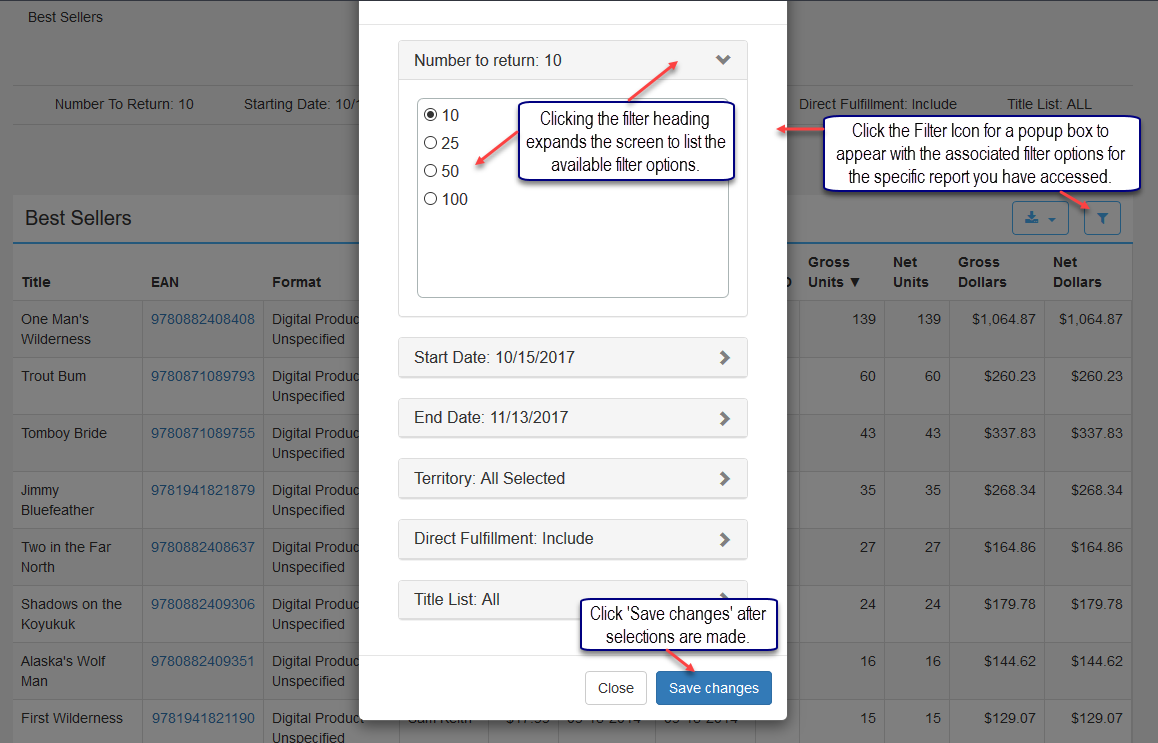
New report results render using the filter selections chosen after Save Changes is clicked.
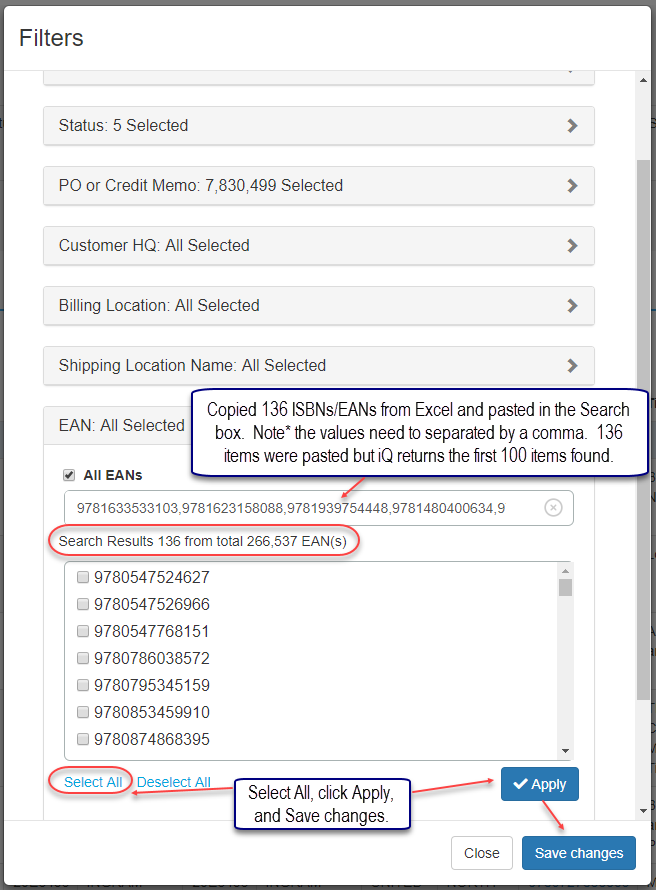
A Filter popup may display Select All, Deselect All when many filter choices are available. The default is for all options to be selected. You may want to Deselect All items and choose specific elements, or if it is easier, click Select All and deselect individual items. When this type of filtering is performed, click the Apply button under the expanded filter view and click the Save changes button to save all filter options.
Better ISBN filtering has been added. You may paste a block of ISBNs/EANs into the filter on detail reports from Excel, etc for ease of use. Paste the ISBNs separated by a comma in the EAN filter search box, click Select All, Apply and Save changes. The first 100 results found render in the detailed report.
Comments
0 comments
Please sign in to leave a comment.