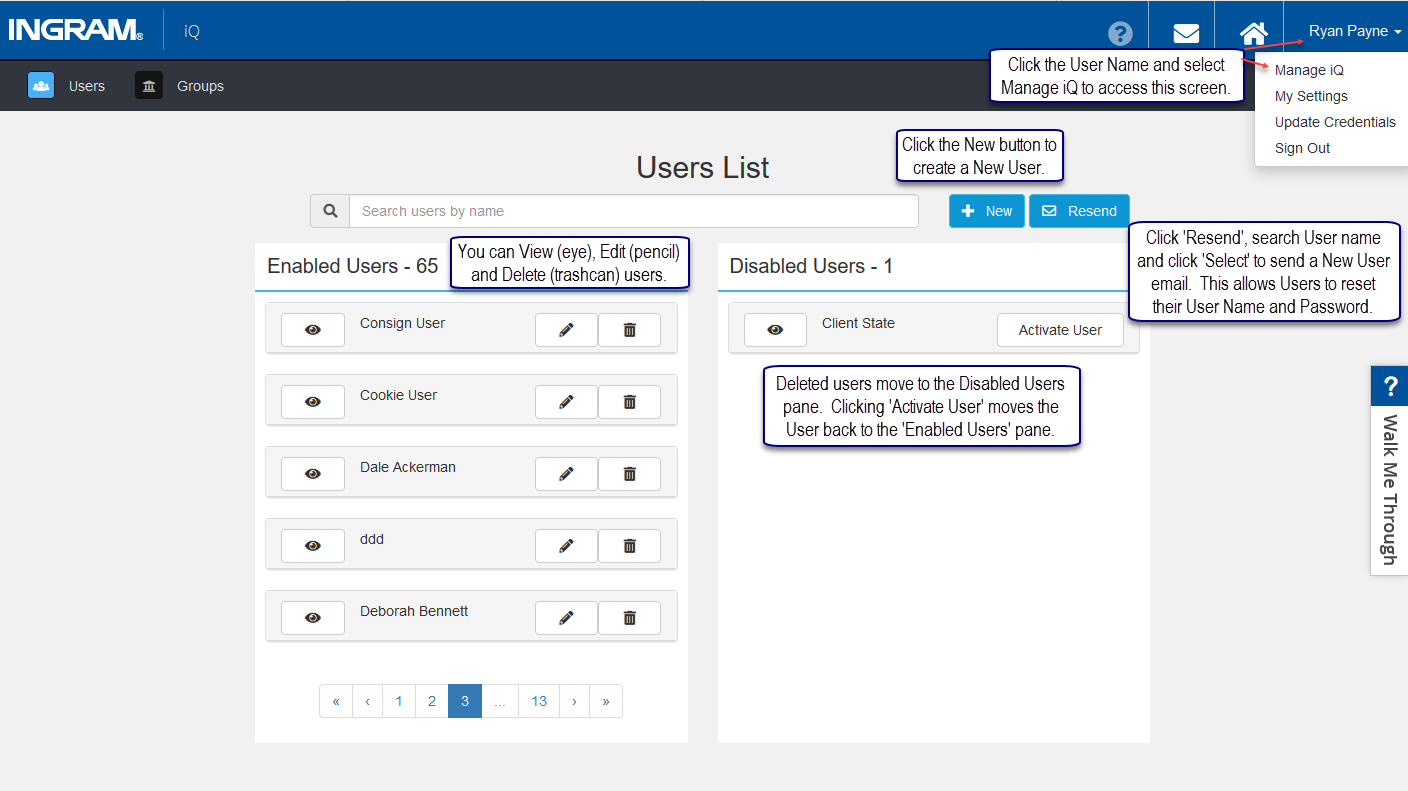
Logged on as a Pub Admin, click the User Name and select Manage iQ. You automatically land on the Users List page. This is the other administrative function managed by Pub Admins. Create New Users as well as Edit and Delete existing users from the Users List screen. Delete a user by clicking the trashcan on the right side of the Enabled User name field. Reactivate deleted users by clicking the Activate User button to the right of the Disabled Users name field. This moves the users information back to the Enabled Users section.
To resend user credentials, first click the blue Resend button and search by user name. Once the user is found, click the Select button on the user name field. This sends an email to the user.
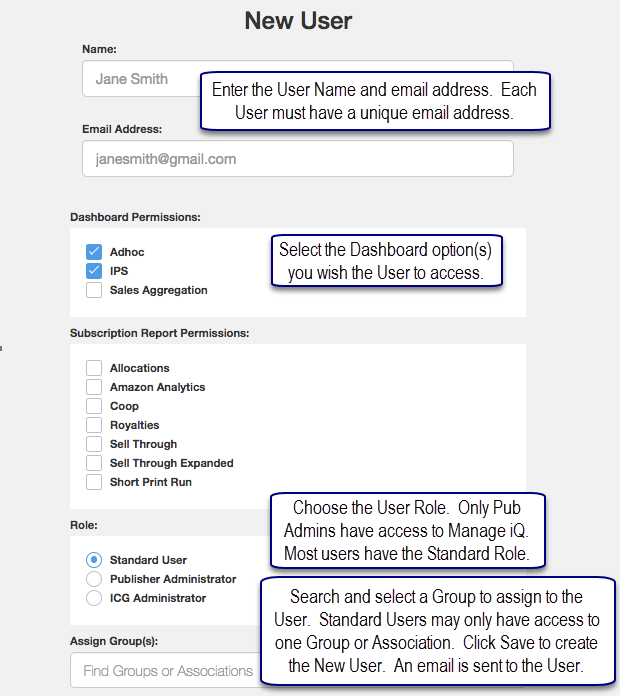
Follow these steps to complete creating a New User.
- Click the New button to access the New User page.
- In the Name field enter the users name.
- Enter a unique email address for the new user. Ingram iQ recognizes if an email address has previously been used.
- Choose the users Dashboard Permissions.
- Select the Subscription Reports the user needs, if any. Subscription reports are permission-based and may have a fee associated with them.
- Choose the User Role. Most users will have the Standard User Role.
- In Assign Groups, search for the Group or Association you want the User to use in iQ and select it. Standard Users may only be assigned to one Group or Association.
- Once a Group is selected, it appears in the Selected Groups section. This is the Active Group the user has access to in iQ.
- Click Save.
An email is sent to the new User explaining how to log onto iQ the first time.
Users have five attempts to log on successfully before being locked out. If a user becomes locked out, please Contact our iQ Support Team for resolution.
Comments
0 comments
Please sign in to leave a comment.