Each Ad Hoc report template has default filters available in the Filters section at the top of the page. Please note that not every selected field can be filtered in the Preview. Exporting your report allows for additional filtering as needed.
For certain templates, additional filters will appear to the bottom of the Filters list if they are added as Fields in your report. These templates are Inventory Resource, Open Orders, Sales Returns and Sales Returns Combined Details. To view the a full list of filters for each template, including the dynamic filters for these templates, please refer to the Ad Hoc Glossary.
To apply a filter, select your criteria then click anywhere on the page outside of the filters section. You should see your selected criteria in the filter section once it has been applied.
Date Filters
If the report template includes a date range filter, you can apply a start and end date for your reporting period. Please note that you will need to select your start date on the calendar before you select your end date. To expand the years in your date range, click the Month/Year that is displaying in the calendar: 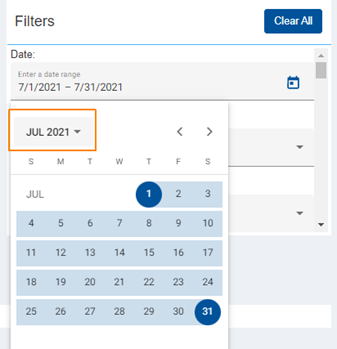
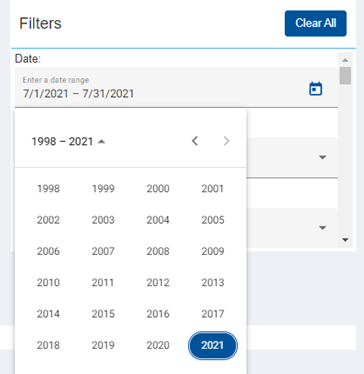
You should then have this view of the calendar to select a different year in your date range. Once you select a year you can then select a Month and Day to apply your date range.
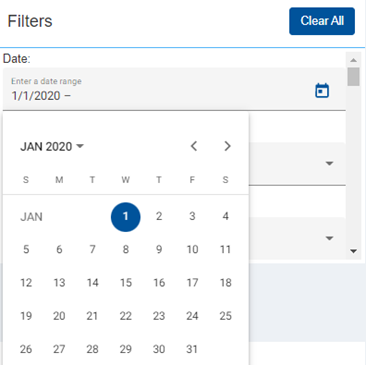
You must select a date on the calendar to apply your start and end dates:
Please note that date ranges are not saved when creating a saved report. You will need to apply your desired timeframe each time you access your saved report.
The Open Orders Report date range defaults to a start date of 1/1/2006. This is to ensure all applicable backorders are captured in the reporting.
The Title Customer and Title Resource templates only have a ‘To Date’ by design. All the Measures included in those reports will be ‘as of’ the date selected.
Additional Filters
To apply additional filters to your report Preview, search and select your desired filters. Scroll down to view all available filters in the template. As you apply filters, the data in your report Preview will be refined to only include the criteria you have selected in the filter(s).
Users can either scroll through the list of available results or type specific criteria into the ‘listbox’ search field, which will refine the results in the list.
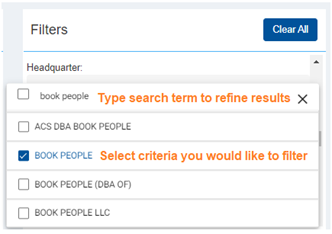
To apply a filter, select your criteria then click anywhere on the page outside of the filters section.
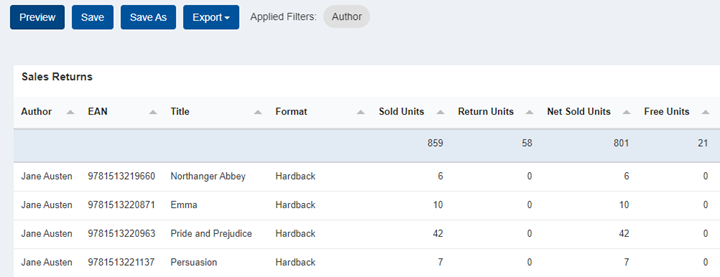
As you apply filters, you should see which filters are applied here:

You should also see your selected criteria in the filter section once it has been applied.
To clear applied filters, either deselect in each section or hit the Clear All button to remove all filters at once.
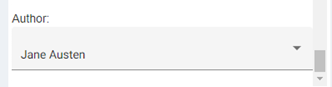
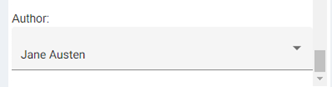
Example: To view titles in your report that have the author Jane Austen, add Author as a field in your report, search and select Jane Austen in the filters, then click anywhere on the screen to apply the filter. Your report Preview should now only display information for titles that are authored by Jane Austen.
Preview:
Searching Multiple EANs
You may search multiple EANs in Ad Hoc Reporting via the EAN field. If you have a list of EANs copied (from an Excel spreadsheet, for example), paste them into the EAN filter search field by using Ctrl + V or Command + V (Mac). All available EANs in the search field are returned. Check the box next to the search field to select all EANs in the search results.
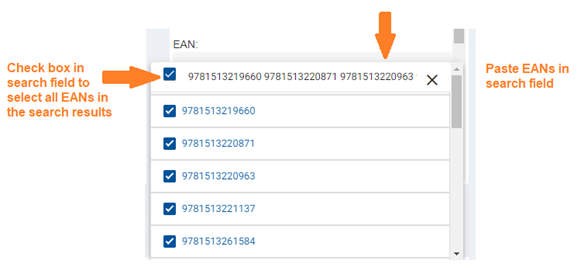
Your report Preview should now include information for only the filtered EANs.
Comments
0 comments
Please sign in to leave a comment.