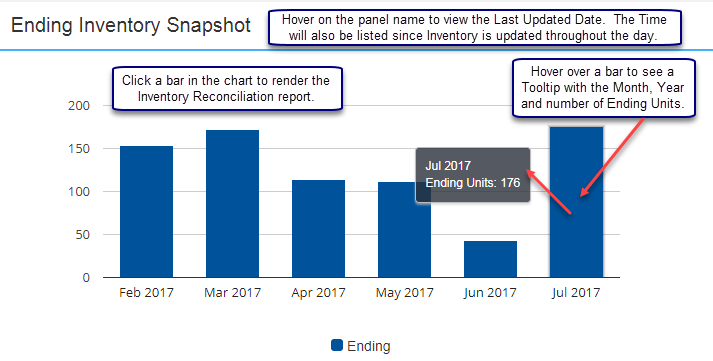
The Ending Inventory Snapshot chart lists the previous six months of data with the last full month of data as the most recent. Hover over a bar for a Tooltip to display the Month, Year and number of Ending Units. Click a bar in the chart to access the Inventory Reconciliation report for the month clicked.
Inventory Reconciliation
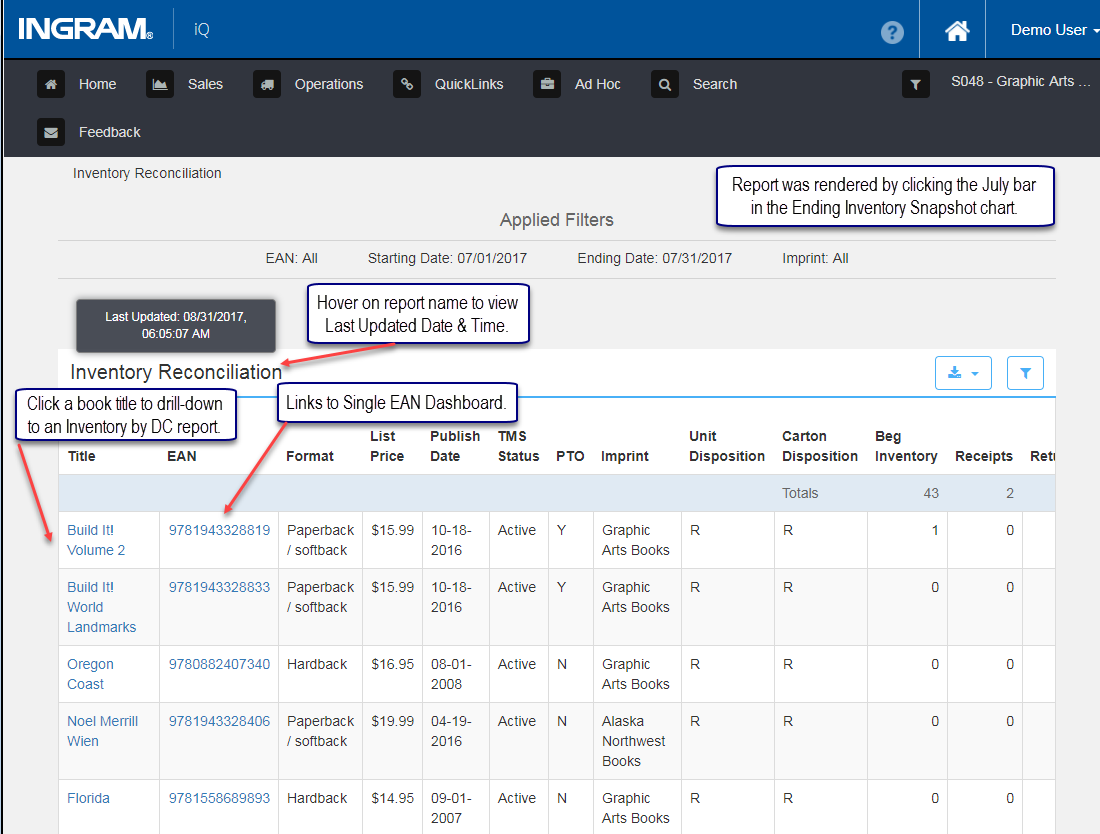
An Inventory Reconciliation report is rendered by clicking a bar in the Ending Inventory Snapshot chart. The report tracks transactions which impact inventory balances from a beginning date to an ending date based upon the report filters chosen. The report may be filtered by EAN, Imprint as well as Start and End Dates. The default sort is by descending Ending Inventory Units but all columns may be sorted. Clicking a Book Title produces an Inventory Reconciliation DC report.
Inventory Reconciliation by DC
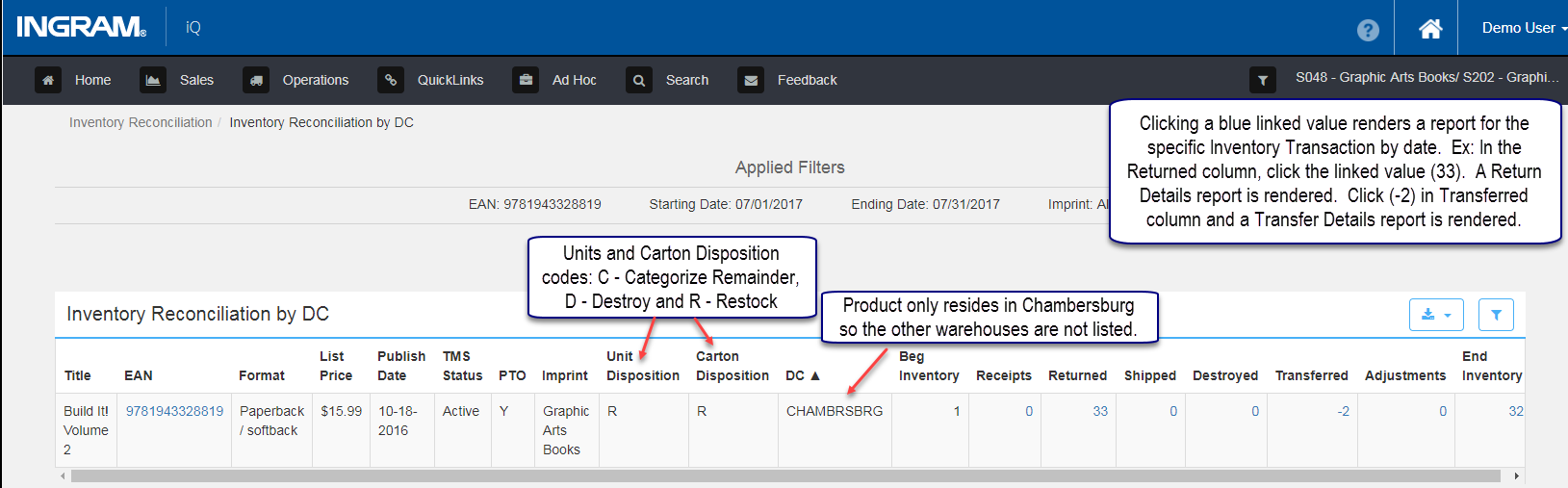
Click a linked Book Title from the Inventory Reconciliation report to render the Inventory Reconciliation by DC report. This report tracks inventory transactions and balances from a beginning and ending date by DC. It provides more detail by displaying transactions at each distribution center where the product resides. The Distribution centers are: CHAMBERSPA - Chambersburg, PA; FT WAYNE – Ft. Wayne, IN; NASHVILLE – La Vergne, TN. The Return Center is: CHAMBRSBRG, Chambersburg, PA. The Unit and Carton Disposition codes are shown. The code values are: C - Categorized Remainder, D - Destroy and R- Restock. The linked column values render drilldown reports for each transaction type used to track the inventory progression.
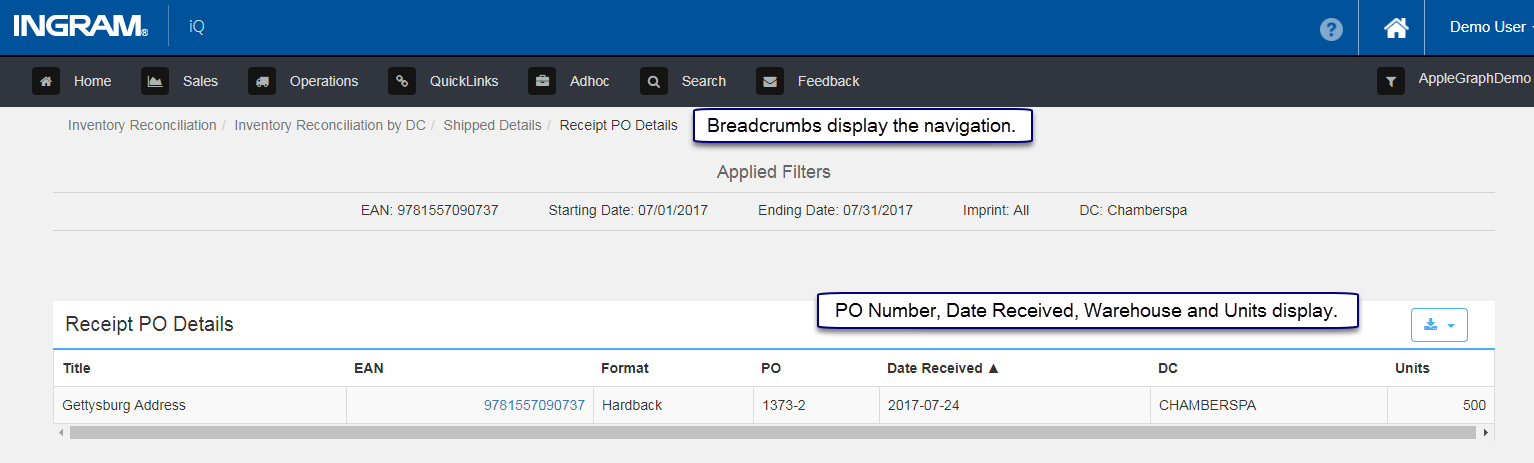
These next reports are accessed via the blue hyperlinked values in the Inventory Reconciliation by DC columns starting with Receipts. Breadcrumbs display under the Menu Bar to show the reports accessed to render the current report.
Receipt PO Details
This drill-down report was produced by clicking the value in the Receipts column. The report displays the Purchase Order number, number of Units and the Date they were received.
Return Details
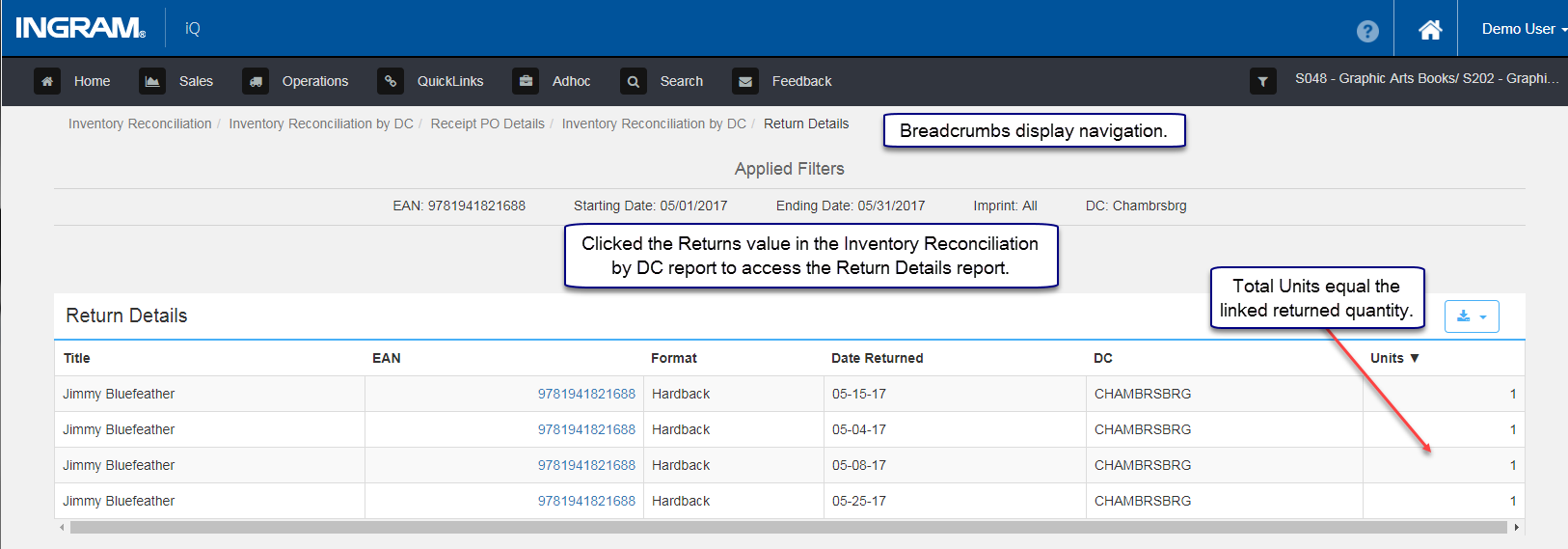
This report is created by clicking a value in the Returns column. In the example below, the CHAMBRSBRG "4" value was clicked. If a zero value is clicked, the report will render with "No results found".
Shipped Details
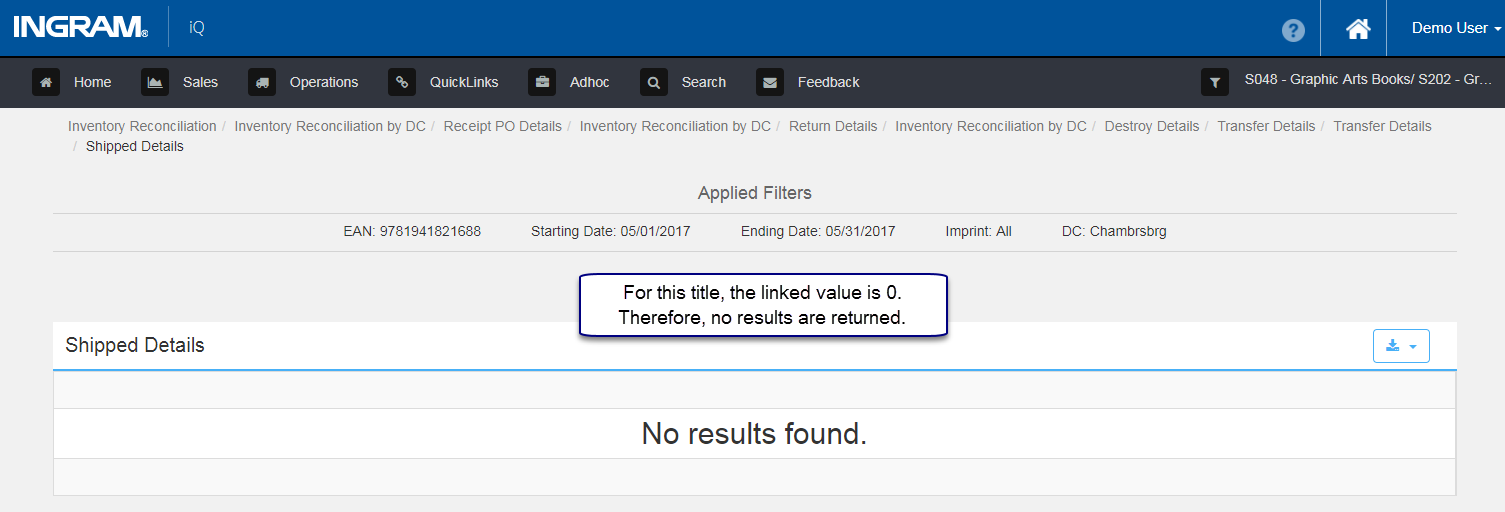
The report is rendered by clicking the Shipped Units value. The example Jimmy Bluefeather has a Shipped value of 0. Clicking a zero value renders the report stating "No results found".
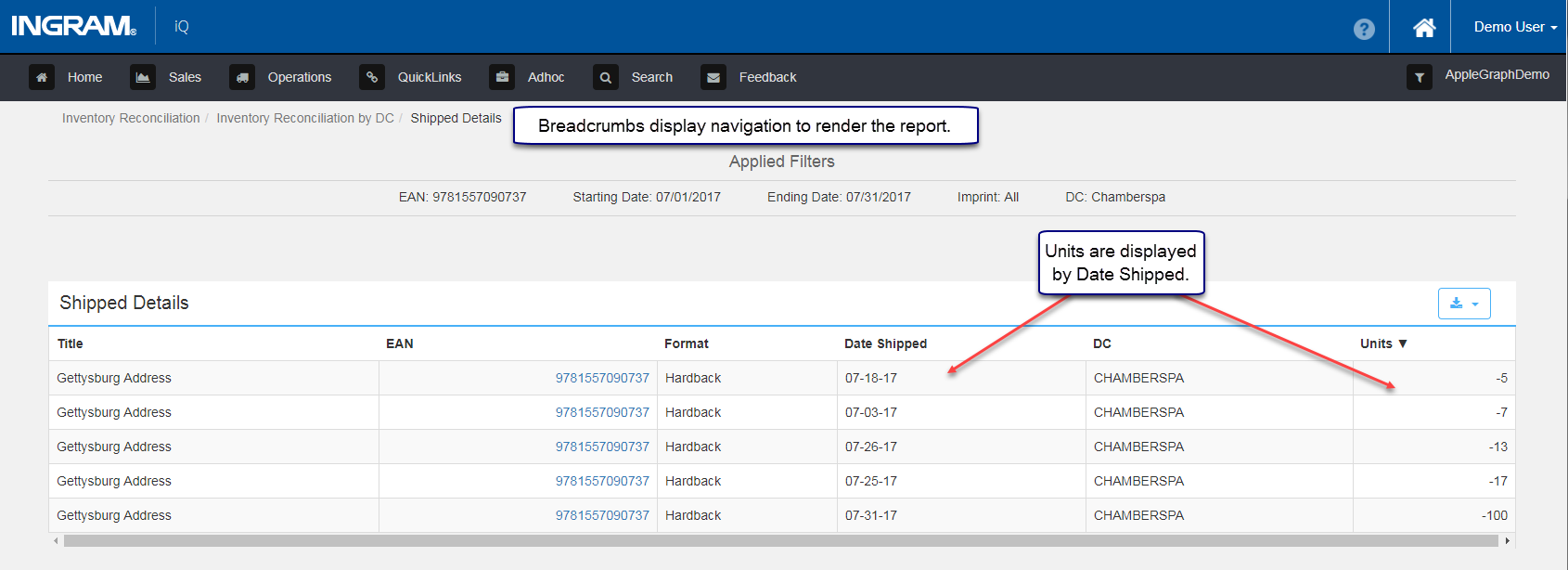
Here is an example of the Shipped Details report when values exist.
Destroy Details
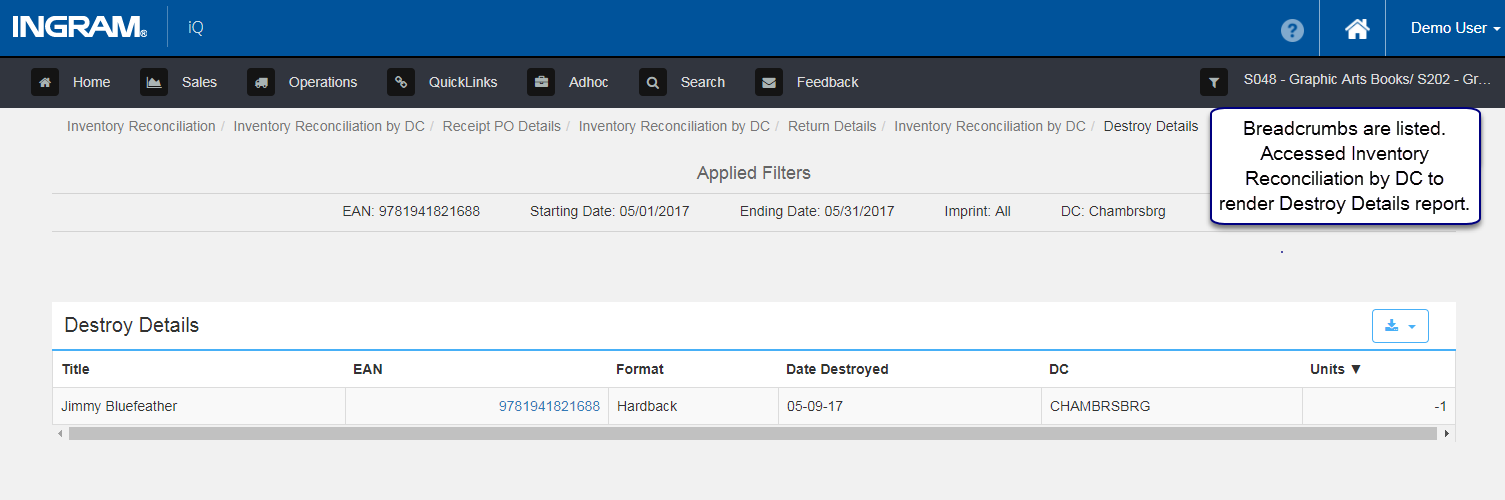
Accessed this report by clicking the Destroyed value. The warehouse and the date the product is destroyed is listed.
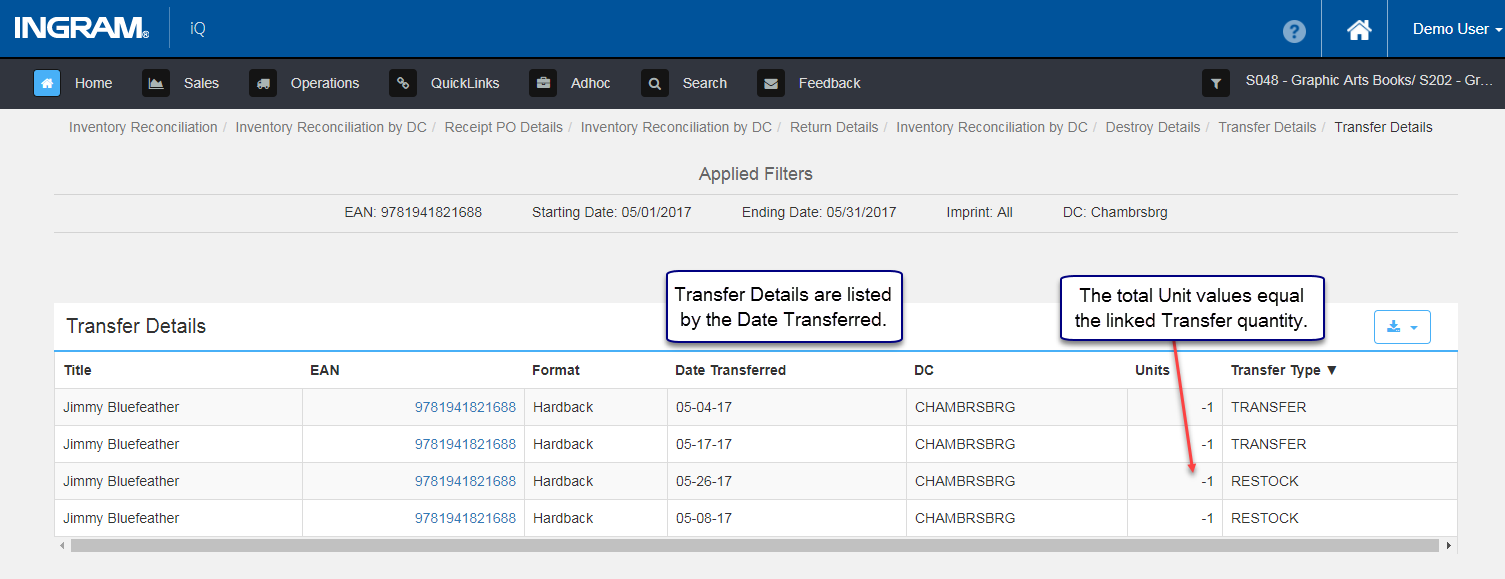
Transfer Details
This report is created by clicking a unit value in the Transferred column. In this example the "-4" transferred units for CHAMBERSPA was clicked. Transfer Types are listed.
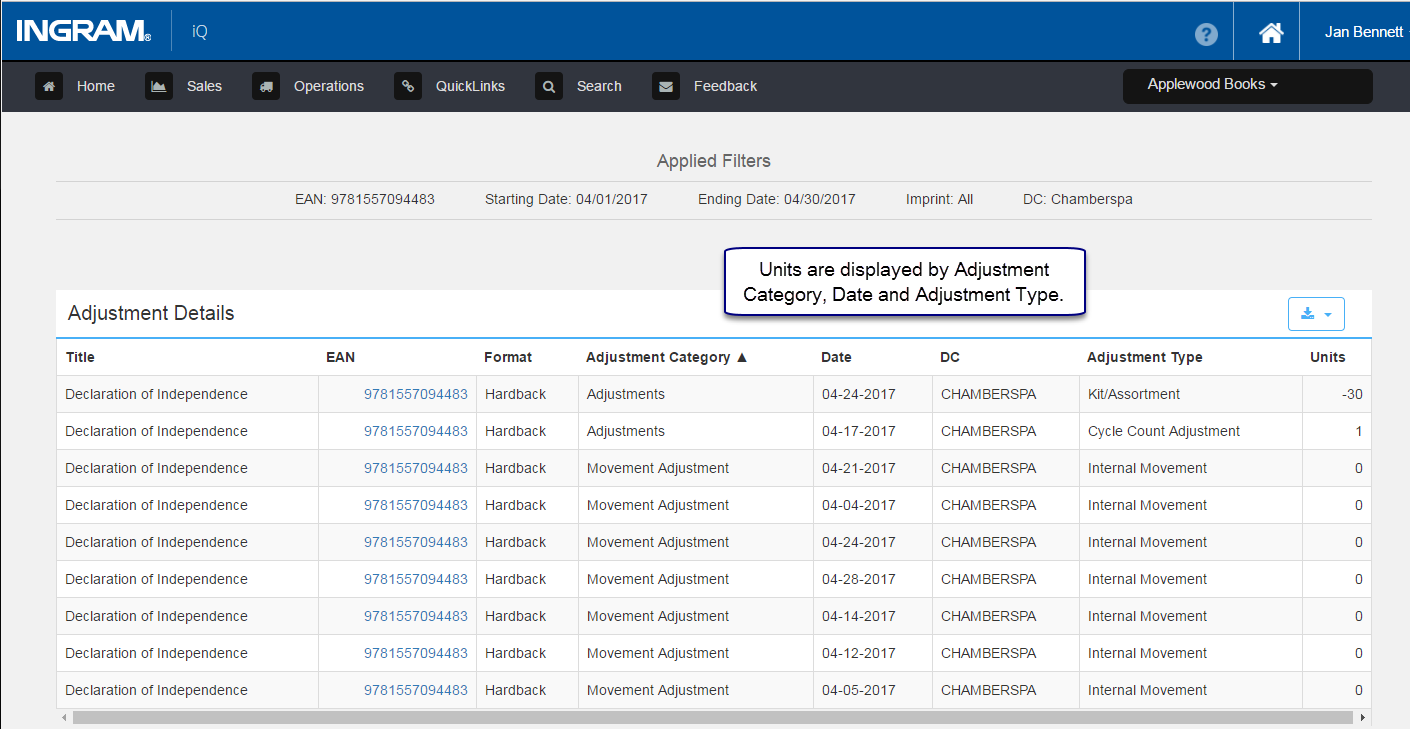
Adjustment Details
Units are displayed by Adjustment Category, Date and Adjustment Type. Adjustment Types include: Internal Movement, On Hand Adjustment, Cycle Count Adjustment, Kit/Assortment and other types of adjustments.
Ending Inventory
The Ending Inventory total is calculated by adding positive values and subtracting negative values of Receipts, Returned, Shipped, Destroyed, Transferred and Adjustment items from the Beginning Inventory amount.
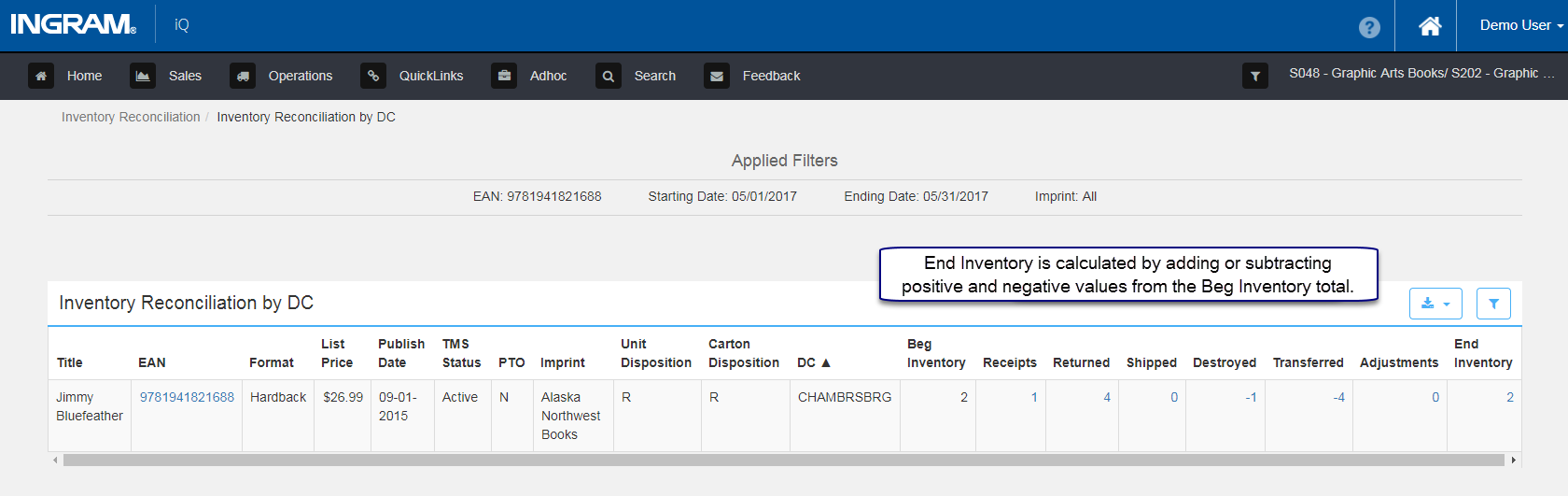
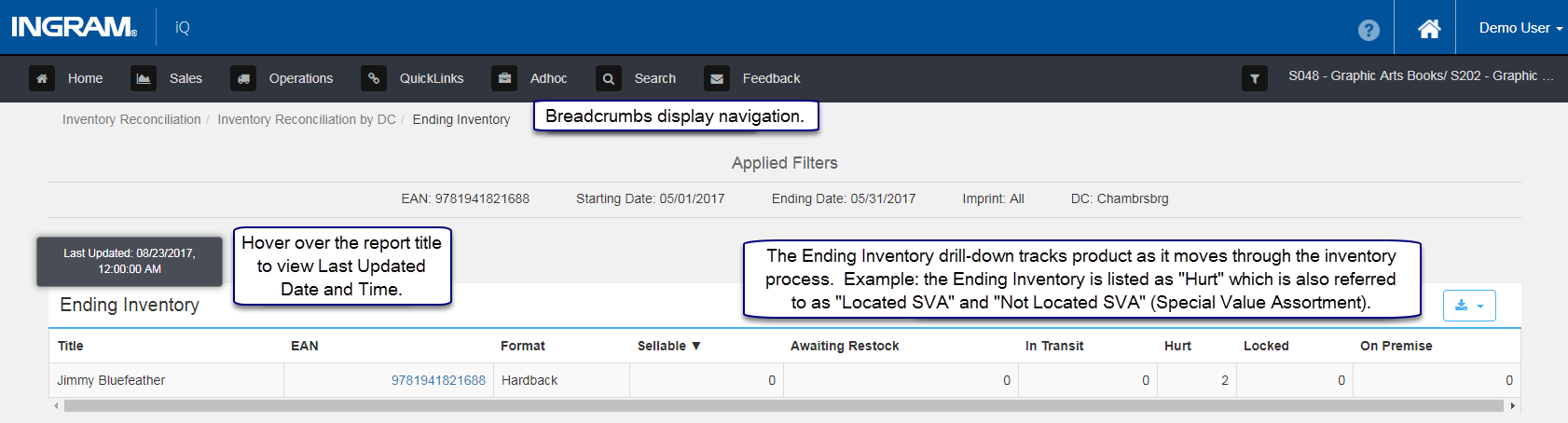
The Ending Inventory drill-down tracks product as it transitions through the inventory process alerting users of the condition and location of product. In the screenshot above, add and subtract the listed values to determine the End Inventory quantity.
Comments
0 comments
Please sign in to leave a comment.